
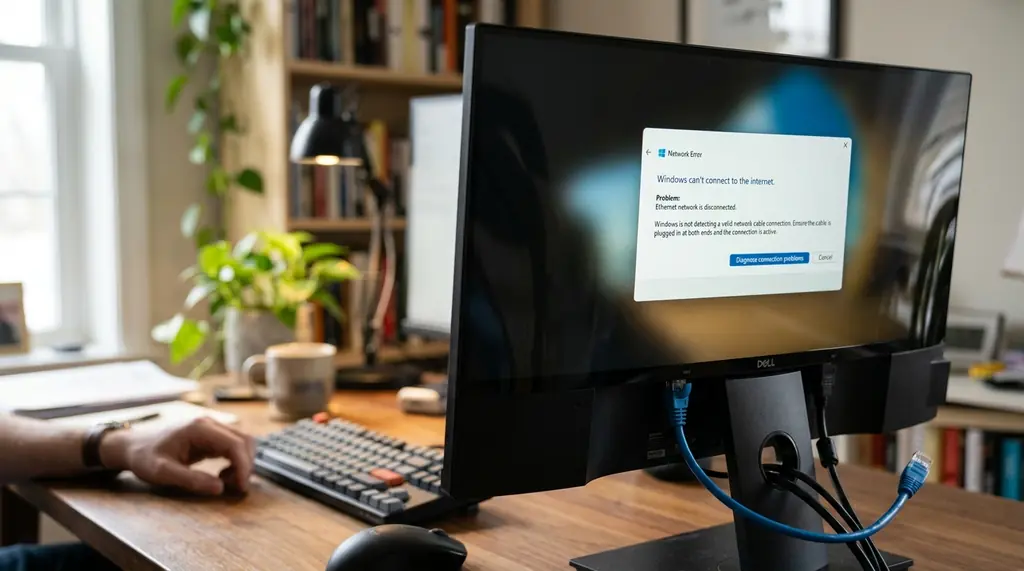
How to Fix the ‘Ethernet Doesn’t Have a Valid IP Configuration’ Error
The error message “Ethernet doesn’t have a valid IP configuration” shows up in Windows when your network adapter fails to receive a proper IP address from your router. Without that address, your computer can’t identify itself on the network — and your internet access shuts down completely.
The underlying cause is almost always a communication breakdown between your PC and your router’s DHCP (Dynamic Host Configuration Protocol) server — the system responsible for automatically assigning IP addresses to devices on your network. In most cases, this is a software or configuration issue, not a hardware failure. That’s good news, because it means most people can fix it themselves in under 10 minutes.
Below are 7 fixes ordered from simplest to most involved. Work through them in sequence and stop when your connection is restored.
What causes the Ethernet doesn’t have a valid IP configuration error?
Several things can trigger this error, but the most common causes are:
- Your router’s DHCP server encountered a temporary glitch
- Your network adapter driver is outdated or corrupted
- Your PC’s IP lease has expired or conflicted with another device
- The TCP/IP stack or Winsock configuration has become corrupted
- A loose or faulty ethernet cable is causing intermittent signal drops
Understanding the likely cause helps you pick the right fix. However, since the simplest fixes resolve the majority of cases, it’s worth starting at the top regardless.
7 fixes for the Ethernet IP configuration error
Fix 1: Restart your router
This solves the problem more often than you’d expect. Routers run continuously and occasionally get into a bad state where DHCP assignments fail. Restarting clears that state and forces the router to issue a fresh IP to your PC.
To restart: unplug your router’s power cable, wait 30–60 seconds, then plug it back in. Wait for it to fully reconnect (usually 1–2 minutes) before testing your ethernet connection. If you have a separate modem, restart that first, then the router.
Fix 2: Reboot your PC
If the router restart didn’t help, reboot your computer. A reboot clears temporary network state, closes lingering connections, and gives Windows a fresh start on its IP request. Many networking issues — including this one — resolve themselves after a clean reboot.
Fix 3: Check your ethernet cable
Before digging into software fixes, physically inspect the ethernet cable. When you plug it in correctly, you should hear a click as the connector locks into place, and you should see indicator lights blink on the router port. If you don’t hear the click or see lights, try a different port on the router or swap the cable for a spare. A damaged cable causes exactly this kind of intermittent connection failure.
Fix 4: Release and renew your IP address
This tells your PC to give up its current (broken) IP address and request a new one from the router’s DHCP server. It’s one of the most effective software-level fixes for this error.
Open Command Prompt as Administrator (search “cmd” in the Start menu, right-click, and select “Run as administrator”), then run these commands one at a time:
- Type
ipconfig /releaseand press Enter — this releases the current IP - Type
ipconfig /renewand press Enter — this requests a fresh IP from the router
Wait a few seconds after the second command and check your connection. This fix resolves the error in a significant number of cases.
Fix 5: Reinstall the network adapter driver
A corrupted or outdated network driver is a common cause of IP configuration failures. Uninstalling and reinstalling it gives Windows a clean driver state.
To do this: press Windows + R, type devmgmt.msc, and press Enter to open Device Manager. Expand “Network Adapters,” right-click your ethernet adapter, and select “Uninstall device.” Confirm the uninstall, then restart your PC. Windows will automatically reinstall the correct driver on reboot. If the driver reinstallation doesn’t help, visit your motherboard or network card manufacturer’s website to download the latest driver version directly.
Fix 6: Run Windows Network Diagnostics
Windows includes a built-in diagnostic tool that can identify network problems and sometimes fix them automatically. To access it: press Windows + R, type ncpa.cpl, and press Enter to open Network Connections. Right-click your ethernet adapter and select “Diagnose.” The tool will scan for issues and either apply a fix or describe the problem in terms that point you to the right solution.
This is worth running even if you suspect you know the cause — it occasionally finds configuration issues that aren’t obvious from the error message alone. Good network security testing practices start with understanding exactly what’s happening at the configuration level.
Fix 7: Reset Winsock and TCP/IP stack
If none of the above fixes worked, resetting the Windows Sockets (Winsock) and TCP/IP stack is the most thorough software-level fix available. According to Microsoft’s DHCP documentation, network stack corruption can prevent proper IP negotiation even when everything else appears normal.
Open Command Prompt as Administrator and run these commands in sequence:
netsh winsock resetnetsh int ip resetipconfig /releaseipconfig /renewipconfig /flushdns
After the final command, restart your computer. This sequence resets the core networking components to their defaults, which resolves most remaining cases of this error. If your connection still doesn’t work after this step, the problem may be with your ISP, router hardware, or physical ethernet port — worth contacting your ISP at that point.
If you’re interested in keeping your PC running at its best, our guide on overclocking your CPU covers hardware performance optimization that complements a well-maintained network setup.
Frequently Asked Questions About the Ethernet IP Configuration Error
What does the Ethernet doesn’t have a valid IP configuration error mean?
It means your computer’s network adapter cannot receive a valid IP address from your router’s DHCP server. Without a valid IP address, your device has no way to identify itself on the network, which blocks all internet access. The root cause is usually a temporary router glitch, a corrupted network driver, or a corrupted TCP/IP stack — all of which are fixable without replacing hardware.
Can simply restarting the router really fix this?
Yes — often it can. Routers run continuously and their DHCP servers sometimes get into a state where they fail to assign IP addresses correctly. Unplugging the router for 30–60 seconds clears that state and forces a fresh assignment when it reconnects. This is always the recommended first step because it costs nothing and works in a large proportion of cases.
How do I release and renew my IP address in Windows?
Open Command Prompt as Administrator, type ipconfig /release and press Enter, then type ipconfig /renew and press Enter. The first command drops your current IP address; the second requests a new one from your router. This takes about 10 seconds and resolves IP assignment issues without requiring a reboot.
What if the problem is my network driver?
Open Device Manager (Windows + R, then type devmgmt.msc), expand Network Adapters, right-click your ethernet adapter, and select “Uninstall device.” After restarting your computer, Windows will automatically reinstall the driver. If that doesn’t fix it, download the latest driver from your motherboard manufacturer’s website and install it manually.
What does resetting Winsock do?
Winsock is the Windows interface that manages all network communication between your operating system and applications. Over time, Winsock’s configuration can become corrupted, which causes all kinds of network failures including invalid IP configuration errors. Running netsh winsock reset in an admin command prompt restores Winsock to its default clean state — without affecting your personal files or settings.