Google Chromebook Review: What It Does, What It Doesn’t, and Who Should Buy One
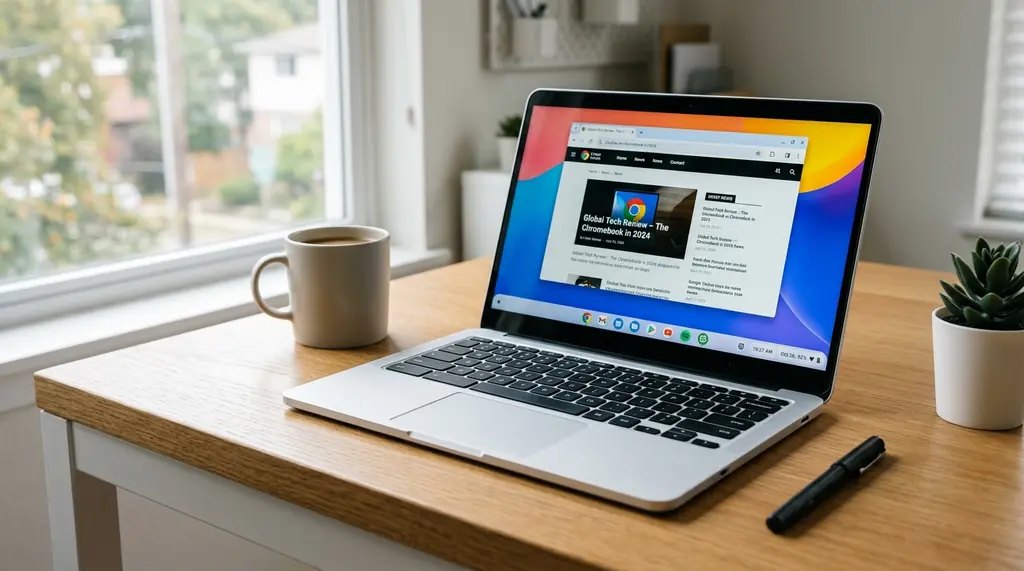
Google Chromebooks have been around since 2011, and the core pitch hasn’t changed much: a laptop that runs Chrome OS instead of Windows or macOS, relies heavily on cloud storage, and costs less than most traditional laptops. What has changed is who they’re genuinely useful for — and that’s a much broader group than the early “browser-only” reputation suggested.
The honest answer to whether a Chromebook is worth buying depends entirely on what you plan to do with it. For some people it’s the best laptop purchase they could make. For others it’s a frustrating mismatch with their workflow. This review covers both sides without the marketing language.
What Is Chrome OS and How Does It Differ from Windows?
Chrome OS is Google’s lightweight operating system, built primarily around the Chrome browser and Google’s web services. Unlike Windows or macOS, it isn’t designed to run traditional desktop software like Adobe Photoshop, Microsoft Visual Studio, or AutoCAD.
What it does instead is run web apps, Android apps from the Google Play Store, and Linux apps through an optional terminal environment. For most everyday computing — email, documents, spreadsheets, video calls, media streaming, and web browsing — that covers everything you need.
Chrome OS also handles security differently. There’s no antivirus software to install or maintain because the OS uses sandboxed tabs, verified boot, and automatic background updates to keep malware out. It boots in about 8 seconds. The tradeoff is that you’re within Google’s ecosystem, and if your tasks require specific Windows or Mac software, a Chromebook won’t run it natively.
Key Features Worth Knowing About
Automatic updates and security
Chromebooks receive automatic OS updates without user intervention, and Google guarantees security updates for a defined period — currently up to 10 years for newer models from the date of manufacturing. You’re not waiting for a Windows Update to prompt a restart at the worst possible moment.
Cloud-first storage
By default, your files live in Google Drive rather than on local storage. This means you can log into any Chromebook with your Google account and pick up where you left off. New Chromebooks come with 15GB of free Google Drive storage, with paid options available. Local storage is available too — useful for offline work or media files — but it’s typically smaller than on Windows laptops at the same price.
Multitasking and virtual desks
Chrome OS supports split-screen and multiple virtual desks, letting you keep different work contexts separate. You can drag windows between a connected external monitor and the Chromebook screen in Overview mode. It’s not as fully-featured as Windows 11’s snap layouts, but it handles the basics cleanly.
Family Link parental controls
Google’s Family Link integration is one of the better implementations of parental controls in any laptop OS. Parents can set screen time limits, approve app installations, filter web content, and link a child’s Google Classroom account for schoolwork — all from a phone. For households with kids using laptops for school, this is a practical advantage.
Android app support
Most Chromebooks can install Android apps from the Google Play Store. This significantly expands what’s available, including apps like Microsoft 365, Spotify, Netflix, and thousands of Android games. App quality varies — some Android apps aren’t optimized for laptop screens — but the better ones work well.
Is a Chromebook Worth Buying? It Depends on Your Use Case
A Chromebook makes sense if you:
- Primarily browse the web, stream video, and use Google Workspace (Docs, Sheets, Slides, Gmail)
- Want a laptop for a student who needs something durable, affordable, and hard to break with malware
- Work mostly in a browser — project management tools, CRMs, spreadsheets, email
- Value long battery life and fast boot times over raw processing power
- Want a low-maintenance machine without Windows update headaches
A Chromebook doesn’t make sense if you:
- Need specific Windows or macOS software — video editing in Premiere Pro, development in certain IDEs, or industry-specific tools
- Do heavy local processing: 3D rendering, high-end video editing, running local AI models
- Game seriously — Chromebook gaming via Android or cloud platforms has improved, but it’s not a PC gaming machine
- Work frequently in areas with unreliable internet — though offline capability has improved, Chrome OS still works best connected
For users who live in the browser and Google ecosystem, a mid-range Chromebook from ASUS, HP, or Lenovo will likely outperform a Windows laptop at the same price, because the hardware doesn’t need to carry the overhead of a full Windows install.
Switching to a Chromebook: Transferring Your Data
Moving from an existing computer to a Chromebook is straightforward if you’re already using a Google account. Sign in to Chrome on your current device, sync your bookmarks, passwords, and extensions, then upload your important files to Google Drive. When you sign into the new Chromebook with the same account, everything is waiting for you.
For files stored locally on Windows, an external drive or direct upload to Drive works well. Microsoft Office documents open fine in Google Docs, Sheets, and Slides — you can also run Microsoft 365 directly from a browser or install the Android apps. The Chromebook’s compatibility with Google Workspace is seamless by design.
Chromebook vs Windows Laptop: The Real Comparison
At the $200–$500 price range, Chromebooks generally win on build quality, battery life, and security compared to Windows laptops at the same price. A $300 Chromebook typically has better construction and longer battery than a $300 Windows machine, because Chrome OS requires far less hardware to run well.
At the $800+ range, the comparison shifts. At that price, a Windows or Mac laptop offers the full software library plus comparable performance, and the Chromebook advantage on price-to-quality narrows. Premium Chromebooks like the Google Pixelbook series exist, but they’re harder to justify against MacBook Air alternatives unless you’re deeply committed to Chrome OS.
For security comparisons with other platforms, this guide on keeping malware off Apple computers covers how Mac security compares — useful context if you’re choosing between platforms. If you’re used to Windows troubleshooting, you might also find our walkthrough on fixing common Windows issues helpful before making the switch.
For a broader roundup of current picks, Tom’s Guide maintains a regularly updated list of the best Chromebooks with hands-on reviews across price ranges.
Frequently Asked Questions About Google Chromebooks
Can you use Microsoft Office on a Chromebook?
Yes. Microsoft 365 runs in Chrome browser as a web app, and the Android versions of Word, Excel, and PowerPoint are available through the Google Play Store. Most users find the browser versions sufficient for everyday document work, though advanced formatting features work best in the desktop Office apps on Windows or Mac.
Can a Chromebook work offline?
Yes, with some limitations. Google Docs, Sheets, and Slides all have offline modes. You can read and compose Gmail offline, and many Android apps work without an internet connection. For the best offline experience, enable offline sync in Google Drive settings before you lose connectivity.
How long does a Chromebook last?
Google guarantees automatic updates for Chromebooks for a set period from the device’s manufacturing date — currently up to 10 years for devices made in 2021 and later. After that update window closes, the hardware still works, but won’t receive security patches. Checking a device’s Auto Update Expiration (AUE) date before buying is worth doing.
What accessories work with Chromebooks?
Standard USB peripherals — keyboards, mice, external drives, USB hubs — work without drivers. Most Bluetooth accessories pair normally. HDMI or USB-C monitors connect for external display. Printers work through Google Cloud Print’s replacement, native Chrome OS print support, or the manufacturer’s Android app.
Is a Chromebook good for gaming?
It depends on the type of gaming. Android games from the Play Store work reasonably well, including titles like Stardew Valley, PUBG Mobile, and various strategy games. Cloud gaming services like GeForce Now and Xbox Cloud Gaming run well in Chrome. However, Chromebooks can’t run PC gaming clients like Steam in the traditional sense, making them a poor choice for players with large existing PC libraries.