
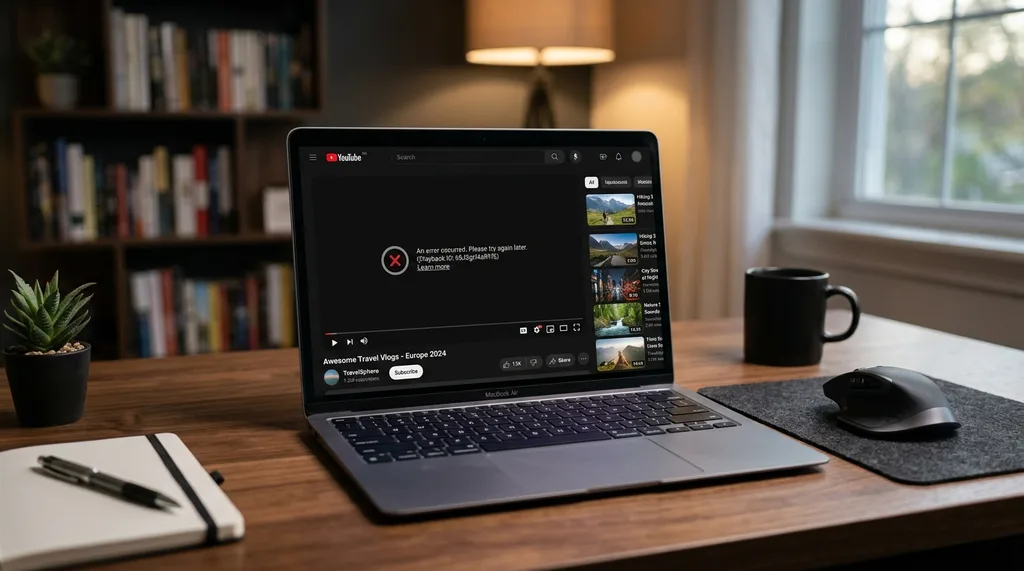
10 Solutions to Fix YouTube Playback Errors
Why YouTube playback errors happen
YouTube playback errors are almost never caused by the platform itself. The most common culprits are corrupted browser data, network issues, outdated apps, conflicting browser extensions, or video quality settings that exceed your available bandwidth. Working through a short checklist will fix the problem in most cases.
1. Clear your browser cache and cookies
Corrupted or outdated cached data is one of the most frequent causes of YouTube playback failures. In Chrome, go to Settings > Privacy and Security > Clear Browsing Data and check Cached Images and Files and Cookies. In Firefox, go to Settings > Privacy & Security > Cookies and Site Data > Clear Data. After clearing, reload YouTube and test again.
2. Lower the video quality
If your internet connection does not have enough bandwidth to support 1080p or 4K video, YouTube may stall and display a playback error. Click the gear icon on any YouTube video, select Quality, and try dropping to 480p or 360p. If the video plays smoothly at a lower resolution, the issue is bandwidth, not YouTube itself.
3. Update the YouTube app
Outdated versions of the YouTube app on Android or iOS can cause playback failures, especially after YouTube rolls out server-side updates. Open the Play Store or App Store, search for YouTube, and install any available updates. On a browser, simply clearing the cache is usually enough since there is nothing to install.
4. Test your internet connection
Run a speed test at Speedtest.net to confirm your connection is stable. YouTube recommends at least 5 Mbps for HD video and 20 Mbps for 4K. If your speed is below those thresholds, or if you see significant packet loss or ping spikes, the playback error is a network issue rather than a YouTube problem.
5. Disable ad blockers and browser extensions
Ad blocking extensions are a known cause of YouTube playback errors on desktop browsers. YouTube actively detects certain ad blockers and may respond by breaking video playback. Disable all extensions temporarily and reload YouTube. If the video plays, re-enable extensions one at a time to find the conflict. You can manage extensions in Chrome by going to the menu > More Tools > Extensions.
6. Switch browsers or try incognito mode
If YouTube works in a different browser or in an incognito/private window, the problem is specific to your browser’s configuration or installed extensions. Incognito mode disables most extensions by default and uses a clean session without stored cookies, making it a fast way to isolate browser-side issues.
7. Sign out of your YouTube account
Occasionally, account-specific data causes playback issues. Sign out of your Google account on YouTube and try watching the video while logged out. If it works, sign back in and check whether the issue persists. If it does, clearing your account’s watch history or signing out and back in again can resolve it.
8. Restart your device
A full restart clears temporary memory, closes background processes, and resets network adapters. If your phone or computer has been running for a long time without a restart, this is one of the simplest fixes and takes less than a minute.
9. Restart your router
Your router can develop connection issues over time without showing obvious signs. Power it off completely, wait 10 seconds for capacitors to drain, then power it back on. Wait for it to fully reconnect before testing YouTube again. This often resolves intermittent buffering and playback errors that are unrelated to your ISP.
10. Check if YouTube is down
If none of the above steps resolve the issue, YouTube may be experiencing an outage. Check Downdetector to see if other users are reporting problems. If there is a widespread outage, the only option is to wait for Google to restore service. Outages are typically resolved within an hour.
FAQs about YouTube playback errors
Why does YouTube say “An error occurred. Please try again later”?
This error most often points to corrupted browser cache or an unstable internet connection. Start by refreshing the page, then try clearing your browser’s cache and cookies. If the error persists, restart your router and check whether YouTube is experiencing a broader outage on Downdetector.
Why is my YouTube video buffering even though my internet is fast?
Fast download speed does not always mean smooth streaming. If hardware acceleration is enabled in your browser and there is a driver conflict, it can cause buffering regardless of your speed. Try disabling hardware acceleration in Chrome’s settings under System, then reload YouTube. You can also manually drop the video quality to 480p to reduce the bandwidth demand.
How do I fix a YouTube playback error on a Smart TV?
Unplug your TV from the wall for 60 seconds to perform a full cold boot and clear its app cache. This is more effective than using the on-screen restart option. After plugging it back in, open the TV’s app store and check whether a YouTube update is available. Installing updates often resolves playback errors on Smart TVs.
Why is there no sound on YouTube?
The most common causes are a muted browser tab or the wrong audio output device selected in your system settings. Right-click the browser tab and check whether Unmute Site is shown. Then open your system’s sound settings and confirm the correct output device is selected. Also check the volume icon within the YouTube player itself.
Do ad blockers cause YouTube errors?
Yes. YouTube has increasingly blocked playback when it detects ad-blocking extensions. If you see a playback error that appeared after installing or updating an ad blocker, try disabling the extension or switching to a browser without it. Some users find that allowlisting YouTube in their ad blocker settings resolves the issue without fully disabling the extension.