
How to Change Your Wi-Fi Channel for Better Speed
Why your Wi-Fi channel matters
If your internet feels slower than your plan should deliver, the problem might not be your ISP. Routers broadcast on specific radio frequency channels, and when multiple networks in the same area use the same channel, they interfere with each other. Switching to a less congested channel is one of the fastest ways to improve wireless performance without spending anything.
Understanding Wi-Fi bands and channels
Most modern routers operate on two frequency bands: 2.4 GHz and 5 GHz. Each band is divided into channels, and picking the right one makes a real difference.
2.4 GHz band
The 2.4 GHz band has 14 channels total, but in North America only channels 1 through 11 are permitted. The three non-overlapping channels are 1, 6, and 11. These are the only ones that do not interfere with each other, which is why most Wi-Fi advice defaults to one of these three. This band has longer range but lower throughput, making it suitable for general browsing and standard-quality streaming.
5 GHz band
The 5 GHz band offers 23 non-overlapping 20 MHz channels, plus wider 40, 80, and 160 MHz channel options for even higher throughput. Because fewer devices operate at 5 GHz, this band is typically less congested. According to the FCC, dual-band routers let you run both frequencies simultaneously, so you can assign different devices to each band based on range or speed needs.
How to change your Wi-Fi channel through the router admin panel
This method works on any router and takes less than five minutes.
- Find your router’s IP address. On Windows, open Command Prompt and type
ipconfig. The Default Gateway value is your router’s IP. On Mac, open Terminal and runnetstat -nr | grep default. - Enter that IP in your browser. Type it in the address bar and press Enter. You will be prompted for your router’s admin username and password, usually printed on the router’s label.
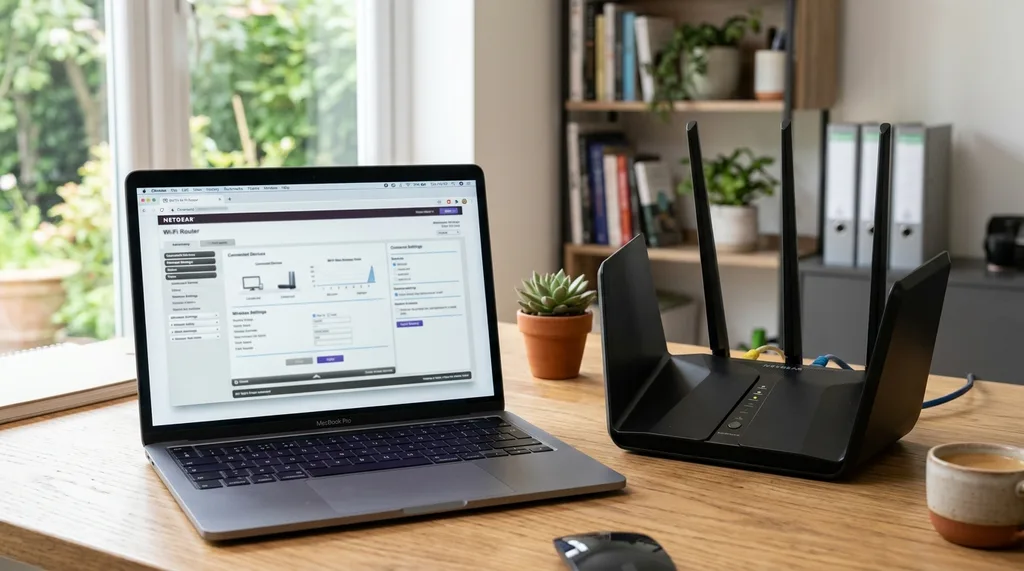
- Navigate to wireless settings. The exact path varies by manufacturer, but look for Wireless, Wi-Fi Settings, or Advanced Settings.
- Select a new channel. Use the channel dropdown to switch. For 2.4 GHz, choose 1, 6, or 11. For 5 GHz, try channels 36, 40, 44, or 48 as a starting point.
- Save and reconnect. Your devices will briefly disconnect and reconnect automatically. No need to re-enter your Wi-Fi password.
How to find the least congested channel using a scanner
Guessing which channel is cleanest is less reliable than scanning. A Wi-Fi analyzer app shows you which channels nearby networks are using so you can pick one with less competition.
On Windows, Wi-Fi Analyzer (free in the Microsoft Store) is a solid choice. On Mac, the built-in Wireless Diagnostics tool includes a channel scan under Window > Scan. On Android, widely used options include WiFi Analyzer by farproc. Once the graph shows which channels are congested, pick one with minimal activity and update your router settings accordingly.
Does changing your Wi-Fi channel actually help?
Yes, in most cases where the issue is interference rather than weak signal or ISP throttling. If your speed tests fast when wired but slow over Wi-Fi, and signal strength is fine, channel congestion is a likely cause. Switching channels can reduce packet loss, cut buffering, and improve latency with no hardware purchase required. According to PCMag, high-end routers handle channel selection automatically at startup, but they do not continuously adjust. Manually checking and updating the channel every few months is a good habit, especially in dense apartment buildings or urban areas.
FAQs about changing your Wi-Fi channel
Which Wi-Fi channel is best for 2.4 GHz?
Channels 1, 6, and 11 are the recommended choices. They are the only three non-overlapping channels in the 2.4 GHz band, which means choosing one of them minimizes interference from neighboring networks that may be using adjacent channels.
Which channels are best for 5 GHz?
Channels 36, 40, 44, and 48 are commonly recommended for home use on the 5 GHz band. If those are congested in your area, channels 149, 153, 157, and 161 are also reliable options. Use a scanner app to see which are least busy near you before choosing.
Will changing my Wi-Fi channel disconnect my devices?
Briefly, yes. When you save the new channel setting, your router restarts its broadcast. Devices disconnect and reconnect automatically within a few seconds. You do not need to forget the network or re-enter your Wi-Fi password.
How do I know if channel interference is causing my slow Wi-Fi?
Run a speed test both over Wi-Fi and via a wired connection. If the wired speed is significantly faster and signal strength on your device shows full bars, channel interference is likely the culprit. Confirm it by scanning nearby networks with a Wi-Fi analyzer and checking how many share your current channel.
Does my router pick the best channel automatically?
Many routers have an Auto channel setting that selects the least congested channel when they boot up. However, this is a one-time check at startup, not continuous monitoring. If network density in your area has changed since your last reboot, manually checking and switching channels can still improve performance.