Movavi Video Editor Plus Review: Features, Real Limitations, and Who It’s For
Most video editing software falls into one of two categories: professional tools with steep learning curves, or beginner tools that run out of capability the moment a project gets slightly more complex. Movavi Video Editor Plus sits in the gap between them — it is genuinely accessible from day one, but it also has enough depth to handle more involved projects without hitting a wall every few minutes. This review covers the key features, limitations, and honest verdict on who this software actually suits.
What Is Movavi Video Editor Plus?
Movavi Video Editor Plus is a non-linear video editing application available for both Windows and Mac. It is the mid-tier product in Movavi’s editing lineup, sitting above the standard Movavi Video Editor and below the full Movavi Video Suite. The Plus version adds object animation, a broader built-in media library, and additional transition and effects options that are not available in the base editor.
The target audience is genuinely broad: content creators who are not ready for the complexity of DaVinci Resolve or Premiere Pro, small business owners producing promotional videos, hobbyist filmmakers, and educators creating instructional content. It is designed to get a finished video out the door quickly, not to provide the granular control that professional colorists or VFX artists need.
Key Features of Movavi Video Editor Plus
The feature set covers everything most non-professional editing projects require:
Timeline-Based Editing
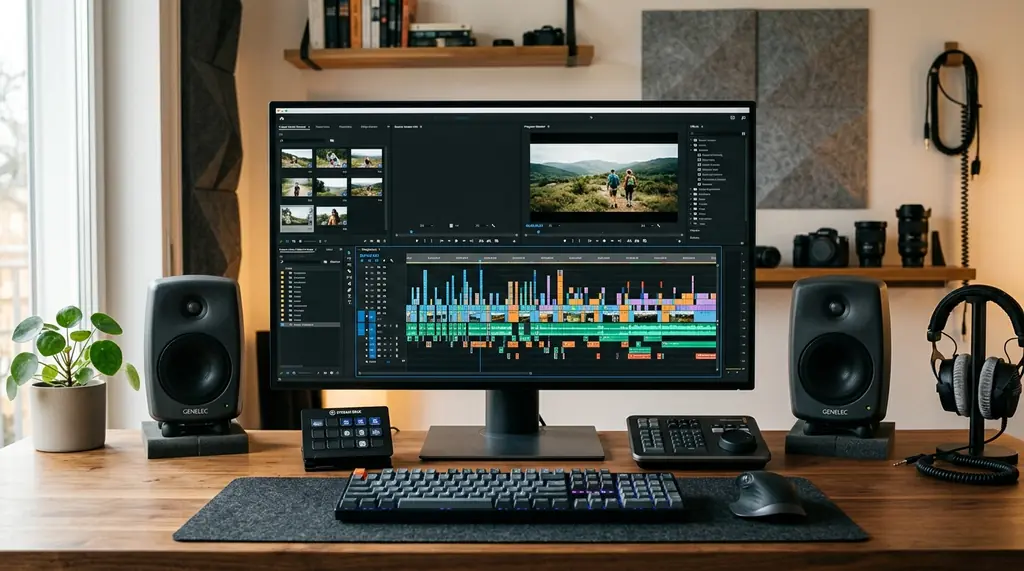
Movavi uses a standard multi-track timeline interface. Video, audio, and effect tracks sit in separate rows, and clips can be trimmed, split, moved, and rearranged with straightforward drag-and-drop controls. The interface loads quickly even with longer project timelines, which is not always the case with entry-level editing software.
Animation and Motion Effects
The Plus tier specifically adds object animation — you can animate titles, stickers, callouts, and other overlaid elements with keyframe-style controls. This is one of the more significant capability gaps between the base Movavi Editor and the Plus version. For YouTube-style content where animated lower thirds and text overlays are common, this feature gets used constantly.
Chroma Key (Green Screen)
The chroma key tool in Movavi is functional and reasonably accurate. It works by selecting a background color — typically green or blue — and replacing it with any other footage or image. The edge detection is adequate for most use cases, though fine hair detail or complex backgrounds that closely match the key color will require some patience with the manual refinement tools.
Filters, LUTs, and Color Adjustment
Movavi includes a library of preset color filters and supports LUT (Look-Up Table) imports for more precise color grading. The color correction tools include brightness, contrast, saturation, and hue adjustments. For basic to intermediate color work, this is sufficient. For professional-level color grading — the kind that requires scopes, secondary corrections, and node-based workflows — Movavi is not the right tool and does not pretend to be.
Transitions and Effects
The built-in transitions library includes parallax transitions and glitch effects that are popular in contemporary online video content. These are applied by dragging them between clips on the timeline. The library is genuinely extensive for a consumer editor, covering smooth cuts, stylized glitches, zoom transitions, and more.
Built-in Media Library
The Plus version includes a library of royalty-free music tracks, sound effects, and stock video clips. The library is larger than the standard version and is searchable by category. For creators who need background music or B-roll without sourcing it separately, this is a time-saver — though the selection will not satisfy anyone with specific creative requirements.
Export Options
Movavi exports to a wide range of formats including MP4, AVI, MOV, MKV, and others. There are preset export profiles optimized for YouTube, Instagram, Vimeo, and various device formats. Export speed is respectable on modern hardware, though Movavi does not support hardware-accelerated encoding on all GPU configurations.
Interface and Ease of Use
The interface is clean and well-organized. First-time users can typically navigate to the timeline, import footage, and produce a basic edit within 20 to 30 minutes without consulting any documentation. The panels are logically grouped: media import on one side, effects and transitions in a tabbed panel, and the timeline running across the bottom.
Where the interface becomes less intuitive is in the animation editor. Keyframe controls are present but not prominently surfaced — new users often miss that animation is possible at all until they actively look for it. The audio mixing controls are also more limited than the video editing side, which can be frustrating on projects where audio quality matters significantly.
Limitations Worth Knowing Before You Buy
No software is right for every use case, and Movavi Video Editor Plus has some genuine gaps worth understanding:
- No audiometer: There is no built-in level meter to monitor audio output while editing. You are editing audio levels by feel rather than by measurement, which makes it harder to produce broadcast-compliant audio
- No custom object imports: You cannot import custom shapes, SVG files, or other non-standard media elements as overlays. You are limited to Movavi’s built-in library of stickers and callouts
- Limited advanced color grading: The color tools are adequate for basic correction but lack scopes, secondary masks, and the node-based workflows available in DaVinci Resolve. For comparison, our DaVinci Resolve review covers what professional-tier color grading looks like
- Watermark on free version exports: The free version places a Movavi watermark on exported videos. The only way to remove it is to purchase a license
- No collaboration features: Movavi is a single-user, single-machine tool. There is no cloud project sharing or multi-editor collaboration
Pricing
Movavi Video Editor Plus is available on the official Movavi website in two tiers: a one-year subscription and a lifetime perpetual license. Pricing varies by region and promotional periods, so checking the current page directly gives the most accurate figure. A free trial version is available that lets you test all features with a watermark on exports — this is the recommended way to evaluate the software before purchasing. Avoid third-party “cracked” versions, which typically bundle malware and forfeit any update or support access.
Movavi Video Editor Plus vs the Competition
Movavi Video Editor Plus sits in a crowded market. Here is how it compares at a high level:
- vs DaVinci Resolve Free: DaVinci Resolve offers significantly more professional capability at no cost, but the learning curve is substantially steeper. Movavi wins on ease of use; DaVinci wins on depth
- vs iMovie (Mac): iMovie is free and deeply integrated with macOS but lacks some of the effects and animation options Movavi offers. Movavi provides more tools at the cost of being paid software
- vs CapCut Desktop: CapCut is free and has strong social-media-oriented features, but its advanced features are increasingly behind a subscription. Movavi has a more traditional workflow that some editors prefer
Who Should Use Movavi Video Editor Plus?
Movavi Video Editor Plus makes sense for a specific kind of user: someone who needs to produce polished, watchable video content on a regular basis, does not want to spend weeks learning software before producing their first usable export, and is willing to pay for a tool that stays out of their way. Content creators producing YouTube tutorials, training videos, short films, or promotional material for small businesses will find it covers their needs comfortably. Professional video editors, broadcast producers, and anyone with advanced color grading or audio mixing requirements will bump against its limitations quickly.
Frequently Asked Questions About Movavi Video Editor Plus
Is Movavi Video Editor Plus free?
Movavi Video Editor Plus offers a free trial that gives full access to all features, but exports in the trial version include a Movavi watermark on the video. To remove the watermark and export clean video files, you need to purchase either a one-year subscription or a lifetime license from the official Movavi website. The free trial is a good way to evaluate whether the software fits your workflow before committing to a purchase.
What is the difference between Movavi Video Editor and Movavi Video Editor Plus?
The standard Movavi Video Editor covers the core editing functions: timeline editing, transitions, filters, and basic effects. Movavi Video Editor Plus adds object and title animation with keyframe controls, a larger built-in music and video library, LUT support for color grading, and additional transition effects including parallax and glitch styles. The Plus version is the more capable tool for creators who regularly use animated overlays or need a broader selection of built-in media.
Does Movavi Video Editor Plus work on Mac?
Yes. Movavi Video Editor Plus is available for both Windows and macOS. The feature set is consistent across both platforms, though it is worth checking the official system requirements page before installing, as minimum GPU and RAM specifications vary by operating system version.
What is chroma key and how does Movavi handle it?
Chroma key — commonly called green screen — is a compositing technique that replaces a solid-color background with different footage or an image. You film a subject in front of a green or blue background, then the editor removes that color and places any background you choose behind the subject. Movavi’s chroma key tool handles standard green and blue screen footage well. Complex edges, fine hair detail, or backgrounds with uneven lighting will require manual refinement using the edge softening controls, but for straightforward setups the results are clean.
Can I upgrade from the standard Movavi Video Editor to the Plus version?
Yes. Movavi’s website allows you to purchase Video Editor Plus directly, and existing users of the standard version can upgrade. The upgrade path is typically available at a discounted price compared to purchasing the Plus version outright. Check the Movavi website for current upgrade pricing, as promotional discounts are common.