
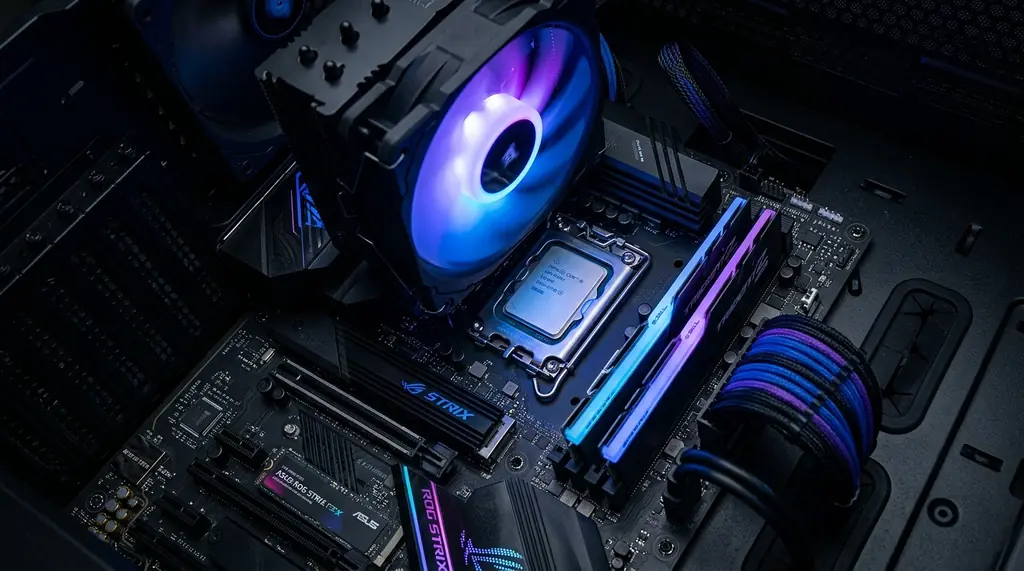
Overclocking CPU: Everything You Need to Know
Overclocking a CPU means running your processor faster than the manufacturer intended. For some people, it’s a way to squeeze extra performance out of existing hardware. For others, it’s an unnecessary risk to stability and component longevity. The answer to whether you should do it depends on what you’re trying to accomplish — and whether you understand the trade-offs going in.
What Is CPU Overclocking?
CPU overclocking is the process of increasing a processor’s clock speed beyond its factory-specified limit to extract more performance from the chip. Every CPU ships with a default clock speed — for example, a processor rated at 3.8 GHz will run tasks at that frequency under normal conditions. Overclocking pushes that number higher, typically through BIOS settings, so the processor executes more instructions per second.
According to How-To Geek, overclocking works by increasing either the base clock multiplier or the voltage supplied to the CPU — or both. More voltage means more stability at higher speeds, but it also means more heat generated per operation.
What Is Clock Speed and Why Does It Matter?
Clock speed, measured in gigahertz (GHz), refers to how many cycles per second a processor can execute. A CPU running at 4.0 GHz completes 4 billion cycles per second. More cycles generally means faster task completion — particularly for single-threaded workloads like gaming or real-time audio processing, where raw per-core speed matters more than core count.
Most modern processors also feature boost clocks — a slightly higher speed the chip can sustain for short bursts when thermals allow. The base clock is the floor; the boost clock is the ceiling under ideal conditions. Overclocking typically targets pushing well beyond the boost clock and sustaining it.
The Main Benefits of Overclocking Your CPU
The two genuine use cases for CPU overclocking are gaming and professional workloads like video rendering. In gaming, a faster CPU reduces the amount of time the graphics card spends waiting on the processor for new frames — a bottleneck that shows up as inconsistent frame pacing and low 1% minimums even when average FPS looks fine. Overclocking can meaningfully improve that floor in CPU-bound games.
For video rendering, 3D modeling, and simulation workloads in applications like Blender or Adobe Premiere, a higher sustained clock speed directly reduces render times. A 10–15% overclock on an unlocked processor translates to roughly 10–15% faster renders — which adds up quickly on long projects.
The Real Risks of Overclocking
There are three problems that come with overclocking, and they’re worth taking seriously.
- Heat: Running a processor faster generates more heat. Even at a stable overclock, temperatures will be higher than stock. This requires better cooling — at minimum a quality aftermarket air cooler, and ideally a 240mm or 360mm all-in-one liquid cooler for aggressive overclocks. Without adequate cooling, the CPU will thermal throttle or crash.
- Reduced lifespan: Higher voltage degrades the transistors inside the chip faster than stock operation. A stock CPU might last 20+ years under normal use. An aggressively overclocked chip at elevated voltage may last 10–15 years. For most people, the hardware will be replaced long before either figure matters — but it’s worth knowing.
- Warranty void: Intel, AMD, and most motherboard manufacturers void the warranty once you’ve manually overclocked beyond factory specifications. If the CPU fails, you’re out of pocket.
Per Tom’s Hardware, most modern CPUs have thermal throttling and crash protection built in, so you’re unlikely to permanently damage a chip through overclocking alone — but stability issues, crashes, and data corruption from unstable overclock settings are real risks if you don’t test properly.
Should You Overclock Your CPU in 2026?
For most users, the honest answer is probably not. Modern processors — particularly Intel’s 13th/14th gen and AMD’s Ryzen 7000 series — ship with aggressive boost algorithms that already push the chip close to its thermal limits. Manual overclocking headroom on these platforms is typically only 5–8% above what the chip does automatically. That’s a small gain for a meaningful investment of time and the trade-offs outlined above.
The clearest case for overclocking is an older, unlocked chip — a 10th or 12th gen Intel Core i9 or an AMD Ryzen X-series processor — where factory settings are genuinely conservative and meaningful gains (10–20%) are achievable. If you’re on recent hardware chasing competitive gaming performance or professional rendering speed, buying a faster chip outright will likely give you better results per dollar than overclocking what you have.
Overclocking a laptop is almost always inadvisable. Laptops have constrained thermal and power delivery systems that weren’t designed to sustain higher-than-rated workloads. The risk of permanent damage from heat buildup is significantly higher than on a desktop.
How to Safely Overclock a CPU: The Basic Process
If you decide to proceed, here’s the standard approach. Note that this applies only to unlocked desktop CPUs — Intel K/KF-series and AMD Ryzen X-series. Locked CPUs and laptop processors cannot be meaningfully overclocked through these steps.
- Check compatibility: You need an unlocked CPU and a motherboard with an overclocking-capable chipset (Z-series for Intel, X or B-series for AMD). Verify both before starting.
- Install proper cooling: A quality aftermarket cooler is mandatory. Don’t overclock on a stock cooler.
- Enter the BIOS/UEFI: Restart and press Delete or F2 on boot to access your motherboard’s BIOS. Find the CPU overclocking settings — typically labeled as CPU Ratio, Clock Multiplier, or Overclocking under the Advanced menu.
- Increase the multiplier incrementally: Start with a small increase — one or two multiplier steps above stock. If your CPU boosts to 5.0 GHz, try 5.1 GHz first.
- Stress test for stability: Use a tool like Prime95, OCCT, or Cinebench R23 to stress the CPU for at least 30 minutes at each setting. If it crashes or produces errors, the clock is unstable.
- Adjust voltage if needed: If the system isn’t stable, a small voltage increase (0.05V increments) may help. Keep CPU core voltage below 1.4V for Intel and 1.3V for AMD Ryzen to avoid accelerated degradation.
- Monitor temperatures throughout: Use HWiNFO64 or Core Temp to track thermal performance. Keep peak temperatures under 90°C on Intel and 85°C on AMD during stress testing.
For a detailed walkthrough with platform-specific settings, Intel’s overclocking guide covers their unlocked processors specifically.
Overclocking vs. Upgrading
A 10–15% overclock on a mid-range processor delivers a noticeably smaller performance improvement than simply buying the next CPU tier up. If your current chip is already close to your platform’s thermal and voltage ceiling, the effort required to push it further may not be justified by the gains. For gamers looking to improve frame rates and smoothness, pairing a well-matched processor with a display that supports adaptive sync technology — like FreeSync — often addresses perceived performance issues more effectively than overclocking alone. Our guide to AMD FreeSync technology explains how adaptive sync reduces screen tearing and frame inconsistency that CPU bottlenecks cause.
Frequently Asked Questions About CPU Overclocking
Is overclocking a CPU safe?
Generally yes, with proper cooling and conservative voltage settings. Modern CPUs include thermal throttling and shutdown protection, so extreme temperatures trigger automatic protection rather than immediate damage. The main risks are system instability, data corruption from crashes during sensitive operations, and accelerated long-term degradation from elevated voltage — not instant hardware failure.
Does overclocking void my CPU warranty?
Yes, in almost all cases. Intel and AMD both specify that operating a CPU outside factory-rated clock speeds voids the standard warranty. Some Intel Extreme Edition processors include a limited overclock warranty, but this is the exception rather than the rule.
Does overclocking reduce CPU lifespan?
Technically yes, but usually not in a way that matters practically. A stock CPU might last 20+ years under normal use. An overclocked CPU at moderate voltage may last 10–15 years. Since most people replace hardware every 4–6 years, the practical impact is minimal for conservative overclocks. Aggressive voltage increases are where lifespan reduction becomes significant.
Is overclocking worth it in 2026?
For most users, no. Modern processors already boost aggressively from the factory, leaving only 5–8% of manual headroom on recent platforms. The time investment, stability testing, and trade-offs aren’t justified for typical gaming or productivity use. It makes more sense on older unlocked hardware where factory headroom is more conservative.
Can you overclock a laptop CPU?
Most laptop CPUs cannot be overclocked through standard BIOS methods. Some high-end gaming laptops with H-series Intel processors offer limited tuning options, but the confined thermal environment makes sustained overclocking highly risky. Overheating can cause permanent damage to components in a laptop where heat has no room to dissipate.